Hi, I'm Lay Outo!
I travel the world, chat with friends in dozens of languages, and butcher a word here and there. My Mac app catches the typos, and when the keyboard layout slips too, it turns 'ηελλο' into 'hello'.
Layouto is a macOS menu bar app built around three fixes: it expands short text shortcuts into full phrases, corrects misspelled words with your Mac's own spell checker, and catches text typed in the wrong keyboard layout to convert it. All three happen locally. No keystroke is ever logged, stored, or transmitted, and the app runs inside Apple's App Sandbox.
Word autocorrect reaches more than 20 languages, including English, Russian, Turkish, German and Ukrainian. Layout conversion covers Cyrillic, Greek, Hebrew, Arabic and Latin scripts too: type 'ηελλο' with Greek active, and it becomes 'hello' the moment you finish the word.
It stays out of Terminal, code editors, and any app you exclude, and it never mangles brand names like iPhone or macOS. No Dock icon, just a menu bar utility: free for 7 days, then an auto-renewable subscription through the Mac App Store.
Features & Stories
Text replacements (shortcuts)
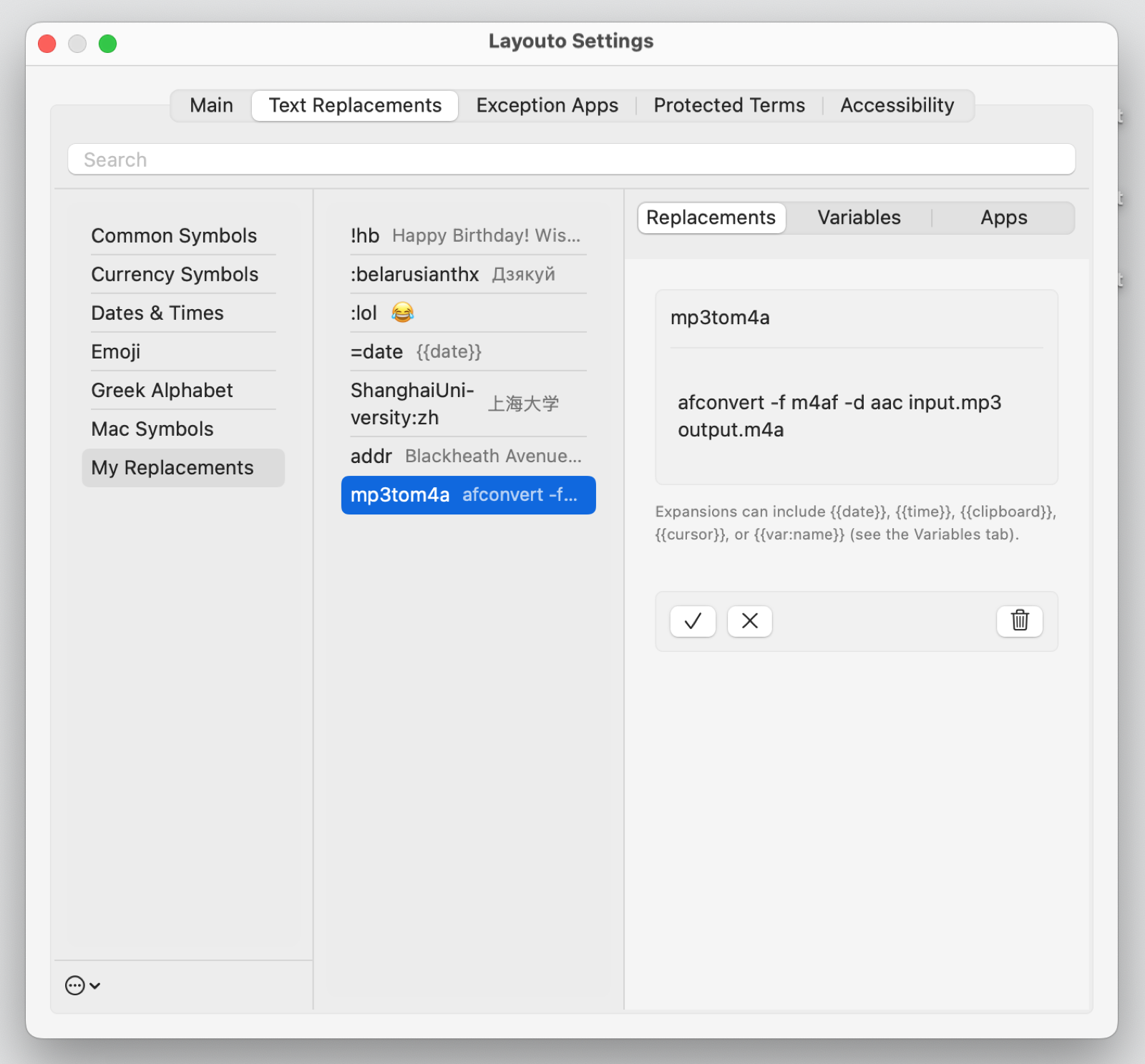
Type a short trigger, get a full phrase back. 'hb' becomes 'Happy Birthday! Wishing you a wonderful day.' the instant you hit space. Set up your own: an email sign-off, a home address for delivery apps, a boilerplate reply you type ten times a day.
Each shortcut is yours to define, and there's no preset list you're stuck with. This runs independently of layout conversion, so it works the same whether you're typing in English, Russian, or anything else Layouto supports.
Most people end up with a handful of shortcuts for the things they type constantly, and forget they're even there.
I sign forty emails a day. 'brgds' now expands into my full sign-off: name, title, calendar link. That's twelve minutes back every day, and I spend them on better coffee.
I have typed 'definately' for thirty years. Teachers circled it, spellcheck underlined it, nothing stuck. Layouto just quietly fixes it mid-sentence and lets me keep my dignity.
Word autocorrect
Layouto checks each word you type against your Mac's built-in spell checker, the same one Pages and Mail use, and fixes real mistakes on the fly. Type 'definately' and it becomes 'definitely' before you've moved to the next word.
It works across languages too. Type the Turkish 'yanlız' and it becomes 'yalnız', so a mixed-language typo doesn't slip through just because it's not in English.
Nothing gets flagged that's actually a real word: Layouto only steps in when the dictionary is confident something's wrong, not when a word simply looks unusual. Turn it off entirely in Settings if you'd rather type mistakes and fix them yourself.
Automatic layout conversion
Layouto watches which physical keys you press and checks them against every keyboard layout you have enabled, not just the one currently active. When your typed word only makes sense under a different layout, it rewrites the word automatically and switches your input source to match.
Type 'ηελλο' with a Greek layout active, and it becomes 'hello' the moment you finish the word. The same mechanism works across Cyrillic, Hebrew, Arabic and Latin scripts.
Someone in Berlin who forgot to switch back from German loses nothing: the correction happens in place, before the sentence is even finished, with no manual layout switching required.
Off the red-eye at Heathrow, I opened my laptop to email my host 'on my way', except the keyboard was still in Cyrillic from messaging my mum earlier. Layouto flipped it back before I even saw the gibberish. Mum gets her Russian, hosts get actual English.
Autocorrect inside a terminal is how production databases die. Layouto knows Terminal.app when it sees it and keeps its hands off. My commands ship exactly as typed, typos included, the way I like them.
Per-app exceptions
Terminal and code editors are exactly where a keyboard correction tool shouldn't be guessing. Add Terminal.app, VS Code, or any app to Layouto's exception list, and it stops watching entirely inside them: no layout switching, no autocorrect.
Your commands and code ship exactly as typed, typos included, because in a shell a 'corrected' character can mean a different command. The exception list lives in Settings and takes effect immediately, no restart needed.
It's a blunt tool on purpose: inside an excluded app, Layouto simply isn't there.
Case-sensitive protected terms
Brand names have a correct capitalization, and autocorrect tools routinely get it wrong: 'Iphone', 'Icloud', 'Macos'. Layouto keeps a list of protected terms (iPhone, iCloud, macOS, and others) and never touches their casing, even when they'd otherwise trigger a correction.
You can add your own terms too: a company name, a product, anything you type often that a spell checker might flag as a typo. Once it's on the list, Layouto treats it as correct no matter what layout or language context it appears in.
I write about Apple for a living. One 'Icloud' in a headline and the comments forget the entire article. Layouto keeps iPhone, iCloud and macOS cased exactly the way Cupertino wants.
Half my family texts in Greek, the other half in English, and my in-laws just switched to Bulgarian. My keyboard used to be a war zone. Layouto is the only one in the house keeping the peace.
More than 20 languages
Word autocorrect runs on top of layout conversion and uses your Mac's own built-in spell checker for each language, so it stays current with system updates rather than shipping its own dictionary.
Out of the box it covers Arabic, Russian, Ukrainian, Bulgarian, Turkish, German, Spanish, French, Portuguese, Italian, Polish, Swedish, Danish, Norwegian, Greek and more. That's over 20 languages in total.
If your language isn't in that list, install any Hunspell dictionary (the same .dic/.aff format LibreOffice and Firefox use) into your user Library, and Layouto detects and uses it automatically at launch.
Assistive technology
Layouto asks for the macOS Accessibility permission and uses it for exactly one purpose: helping you enter text. Someone with ADHD or an executive function disorder should not have to keep track of which layout is active at every moment.
Someone with a visual impairment, including VoiceOver users, cannot reach the small menu bar indicator at all. Someone with a motor impairment pays a physical cost for every delete-and-retype cycle. Dyslexia and other language-processing conditions make rapid switching between languages especially error-prone.
Layouto catches the mistake itself, on the user's behalf, at the moment it happens. The app sees only the code of the key you pressed, never reads another app's screen or text, and sends nothing over the network.
In practice: the correction lands without ever needing a glance at the menu bar, because for some people there is nothing to glance at. No extra keystrokes, since the word does not have to be deleted and typed again.
No confirmation dialog, because the correction has already happened. If it was not wanted, double-Shift restores the original text. This works in every app you type in, not only inside a Layouto window.
Who this is for
Customer support in three languages
You reply in English, Russian, and Turkish in the same chat. Your keyboard layout can't keep up, but Layouto can.
Developers pasting code
Copy-pasting configs and commands all day. Terminal and your editor are on the exception list, so not one character gets touched.
Bilingual families
Texting the kids in English, your partner in Turkish, colleagues in Russian. The layout switches itself before the word is even finished.
Academic writing with Latin terms
A Cyrillic-language paper still needs the occasional Latin term, and Layouto doesn't mistake it for a wrong-layout typo.
Fast address entry with motor impairments
Every extra keystroke has a cost. A three-letter shortcut expands into a full address, no retyping required.
Real estate agents typing one address twenty times a day
Three letters, and the full listing address appears. It saves patience more than time.
Expats switching layouts four times a day
Home, work, friends, officials: each one wants a different layout. Layouto remembers which one you need right now.
Copywriters protecting brand names
iPhone, iCloud, macOS: capitalization stays exactly right, even when autocorrect usually can't leave it alone.
Ready to download
Layouto is live on the Mac App Store. Free for 7 days, then an affordable subscription (monthly or yearly).
⬇️ Download on the Mac App StoremacOS 13+ • Available now
Frequently asked questions
Can't find an answer, or something's not working? Email us: support@layouto.app
Does Layouto send my keystrokes anywhere?
No. Layout detection and correction happen entirely locally on your Mac. No typed character is ever logged, stored, or transmitted.
Why does it need Accessibility permission?
Layouto uses Accessibility purely for input assistance: catching a mistake at the moment it happens, not for anything broader. It watches which key you pressed (a keycode, not your screen content) so it can tell when your typed word only makes sense under a different keyboard layout, then injects the correction as ordinary backspace-and-retype keystrokes. That's the entire scope: Layouto never reads another app's text, interface, or screen. The AXUIElement APIs that would allow that aren't used anywhere in the app, and macOS Sandbox blocks that kind of cross-app access regardless. Keys are buffered locally for the current word only and discarded the moment it resolves; nothing is logged, stored, or transmitted. This is assistive technology in the literal sense of the word. Someone with a cognitive or memory impairment, including ADHD or an executive function disorder, often cannot reliably track which layout is active right now; Layouto takes over that job instead of asking them to watch for it themselves. Someone with a motor impairment benefits because automatic correction means fewer keystrokes: no manual delete-and-retype cycle, less repetitive strain on the hands. Someone with a visual impairment, including VoiceOver users, cannot see the small layout indicator in the menu bar at all, so the correction has to happen without ever requiring a glance at it. Dyslexia and other language-processing conditions make fast layout switching especially error-prone, and older users working across several languages carry that same cognitive load. Accessibility is what lets Layouto catch the mistake on their behalf, automatically, before it needs fixing by hand.
Does it work offline?
Yes. All correction runs without an internet connection. The network is only used to purchase a subscription, which Apple handles through the App Store.
How do I undo a wrong correction?
Press Shift twice. That restores the original text; pressing again cycles through your enabled layouts.
How much does it cost?
7 days of full access free, then a subscription. You can manage or cancel anytime in your App Store settings.
Which languages are supported?
38 languages in three tiers. Tier 1: Arabic, Bulgarian, Danish, French, German, Greek, Italian, Norwegian, Polish, Portuguese, Russian, Spanish, Swedish, Turkish, Ukrainian, Vietnamese: convert automatically to and from every other Tier 1 or Tier 2 language. Tier 2: English, Dutch: convert automatically from any non-Latin script (Cyrillic, Greek, Hebrew, Arabic…); converting into them from another Latin layout takes the double-Shift hotkey. Tier 3: Armenian, Belarusian, Croatian, Czech, Finnish, Georgian, Hebrew, Hindi, Hungarian, Icelandic, Irish, Kazakh, Lithuanian, Persian, Romanian, Serbian, Slovak, Slovenian, Uzbek, Welsh: manual conversion on request (double Shift) or download a Hunspell dictionary for your language (a .dic + .aff pair, e.g. from the LibreOffice dictionaries collection), put both files into ~/Library/Spelling, then log out and back in (or restart your Mac). On the next launch Layouto detects the real dictionary and enables automatic conversion, e.g. Hebrew becomes Tier 1. If the files came from a browser, clear quarantine in Terminal: xattr -dr com.apple.quarantine ~/Library/Spelling
Can I add a language that isn't auto-converted?
Yes. Layouto relies on macOS's built-in spell checking. Download a Hunspell dictionary for your language (a .dic + .aff pair, e.g. from the LibreOffice dictionaries collection), put both files into ~/Library/Spelling (Finder → Go → Go to Folder…), then log out and back in (or restart your Mac). On the next launch Layouto detects the real dictionary and enables automatic conversion. If the files came from a browser, clear quarantine in Terminal: xattr -dr com.apple.quarantine ~/Library/Spelling. Conditions: the dictionary must genuinely validate words (reject nonsense); across different scripts (Hebrew ↔ English) conversion turns on right away, between same-script languages only if the layout has letters distinctive of that language (ä, ş, ё…).